![SkyTrak_Logo-1000.png]](https://resources.skytrakgolf.com/hs-fs/hubfs/SkyTrak_Logo-1000.png?height=22&name=SkyTrak_Logo-1000.png)
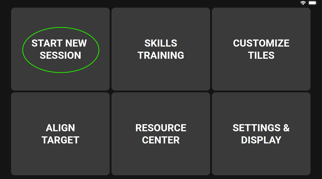
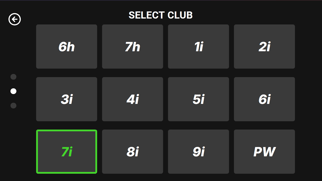
To begin a new practice session on your ST Pro click "Start New Session" and choose your first club.
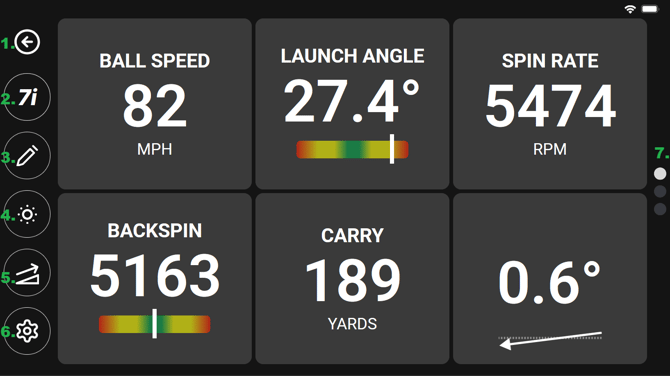
1. Back
Return to the ST Pro home screen
2. Club Selection
Change your selected club
3. Customize Tiles
Customize which metrics appear on your screen as you take shots.
-Click the  Icons to add a metric.
-Click the  Icons to remove a metric from the custom view.
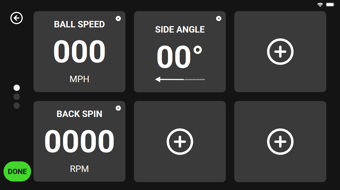
-Click "Done" when you are satisfied with the custom view. This will take you to a screen where you can hold and drag metrics to other positions within the custom view. Drag, then release to make tiles swap places.
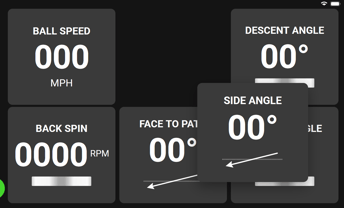
-Press "Done" again.This will return the view to the main session screen.
4. Change display mode
Switch between normal and outdoor display modes.
5. Align Target
This function is for setting your line of play with the SkyTrak unit. Ideally this will be done each time the position of the unit is changed. The SkyTrak unit will emit two red lasers. Place your ball on the red dot each laser makes on the mat, then press "Start"
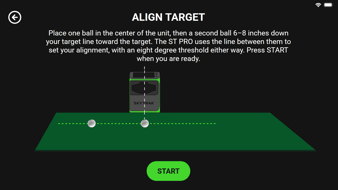
The display will show your alignment setting in degrees from parallel.
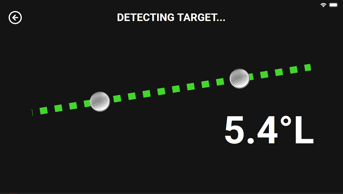
Press "Finish" to confirm the alignment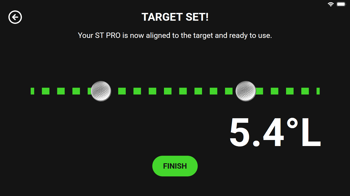
6. Settings
This menu has three categories:
-Metric Settings
-Display Preferences
-System Info
Metric Settings
Here you can change the format in which metrics are displayed.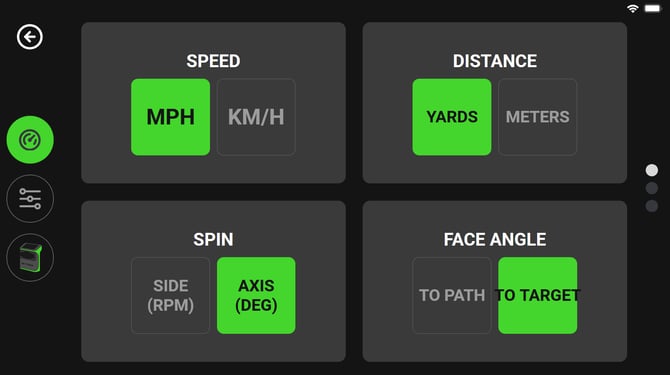
Display Preferences
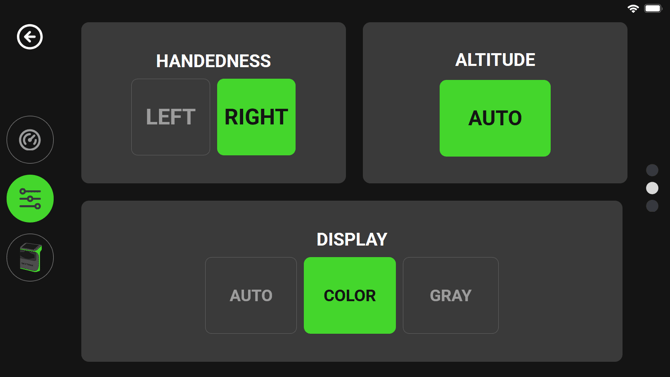
-Handedness - Switches handedness mode of the launch monitor
-Altitude - Toggle between automatically setting altitude and manually setting altitude
-Display - Color is meant for indoor use, while grey is better for outdoor. Auto will switch between them automatically.
System Info
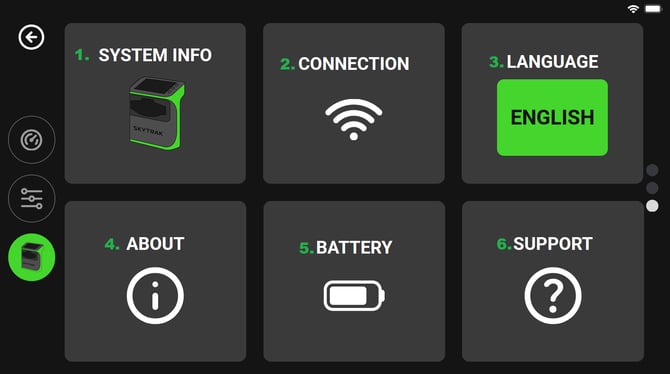
1. System Info
This page displays the Pitch, Roll, Temperature, and Altitude of the unit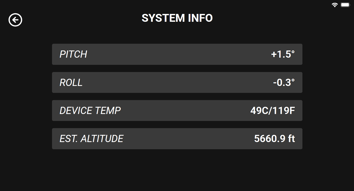
2. Connection
Displays current network connection, Device Name, ST PRO WiFi Password, and IP Address. The Green "Reset Connection Settings" button will clear any stored home WiFi credentials from the unit, which helps get out of Network Mode and back to Direct Mode.
3. Language
Changes ST Pro display language.
4. About
Displays:
-Ethernet IP
-WiFi IP
-Firmware Version
-Serial Number
-Model Name 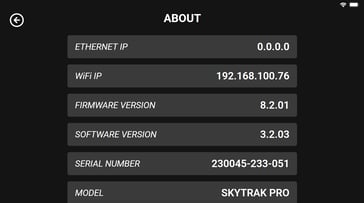
5. Battery
Displays battery icon legend, Current charge, current temperature, and charger wattage.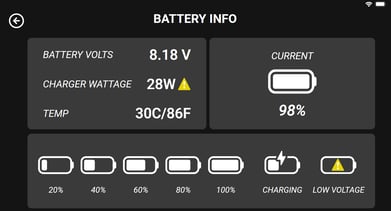
6. Support
Provides QR code to SkyTrak Knowledge Base and phone number for support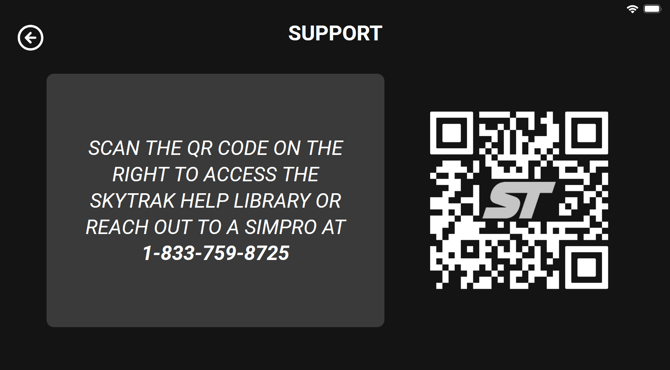
7. Page Indicator
This icon indicates which page of the metrics you are currently viewing. Swiping up or down will move the highlighted dot up and down and show you the next or previous page of metrics.