![SkyTrak_Logo-1000.png]](https://resources.skytrakgolf.com/hs-fs/hubfs/SkyTrak_Logo-1000.png?height=22&name=SkyTrak_Logo-1000.png)
1:Connect your SkyTrak in either USB/Network/Direct Mode
Troubleshooting:
-PC: If you're having trouble with a wireless mode, try USB mode
-MacOS/iOS: If you have a Windows PC at all, you may download version 4.4.7 and try connecting in USB mode. If this is unavailable, you may need to take your unit outside of WiFi range, then reboot. The LED indicators will display Green-Red-Red and allow you to connect in Direct Mode to do the reset.
2: Press the Launch Monitor icon on the top left
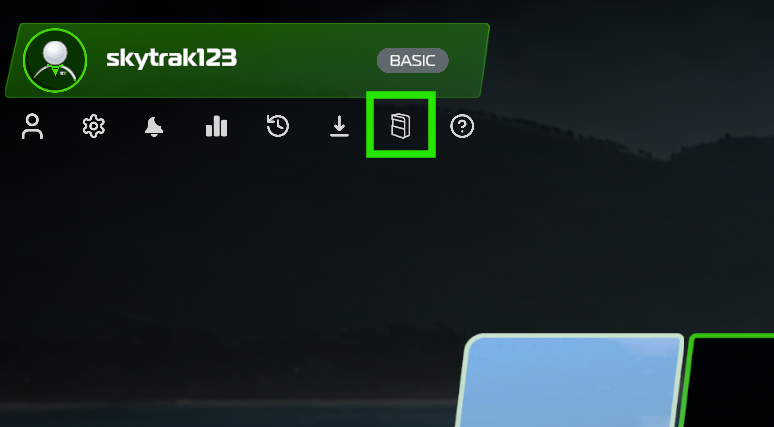
3: Press Reset below your Serial Number at the bottom right.
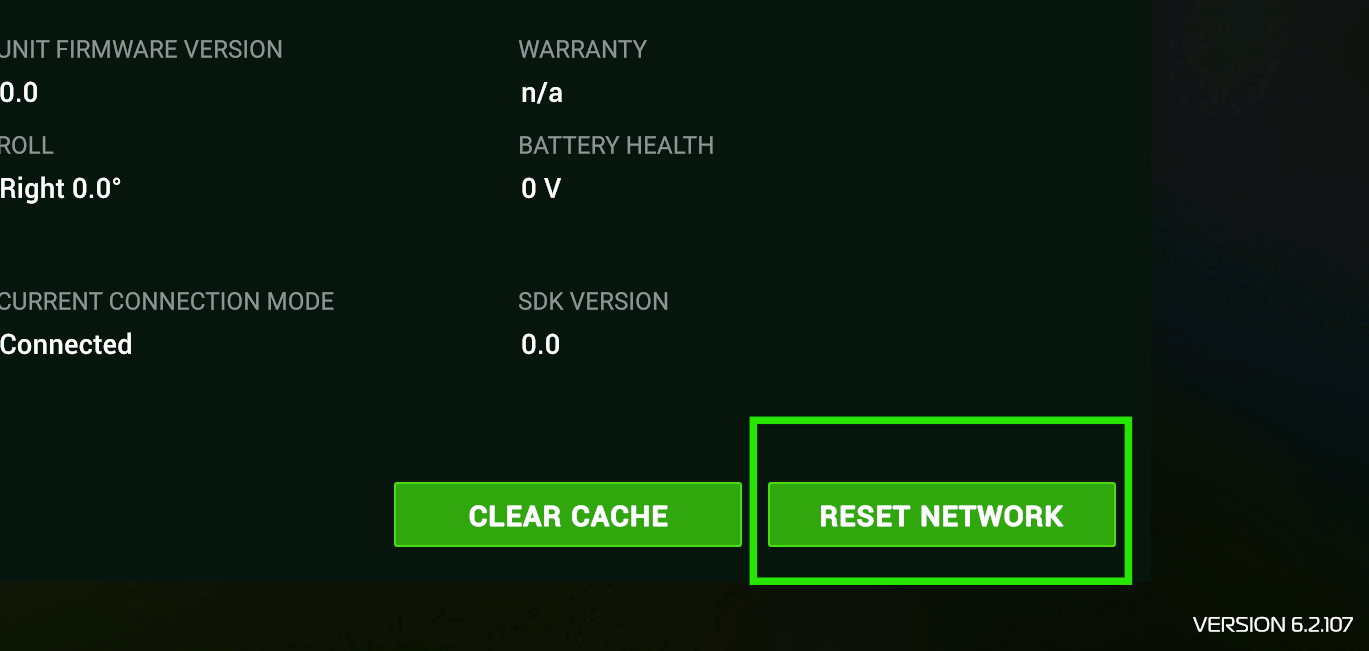
4: Select "Yes" to rest your unit and wait for Green Power, Red WIFI, Red Check
5:Power cycle your SkyTrak unit to complete the reset.
6: Please follow the steps at the top right in connection hub to connect your SkyTrak to the SkyTrak application.
You have now successfully reset your SkyTrak +