![SkyTrak_Logo-1000.png]](https://resources.skytrakgolf.com/hs-fs/hubfs/SkyTrak_Logo-1000.png?height=22&name=SkyTrak_Logo-1000.png)
1. Navigate to clubhouse.skytrakgolf.com in a web browser.
If you are already logged into your master account on this page, select the Log Out icon in the top right corner of the page.

2. Click "Create an Account" and proceed through the account creation process.
*NOTE If you are having trouble pressing "Save" on page two of the account creation process the username entered on the previous page is not unique and must be adjusted. 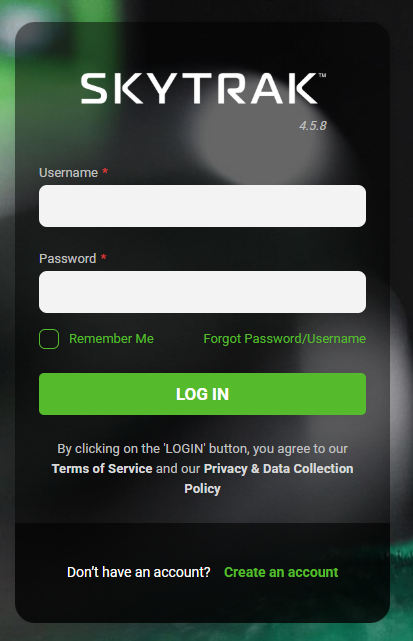
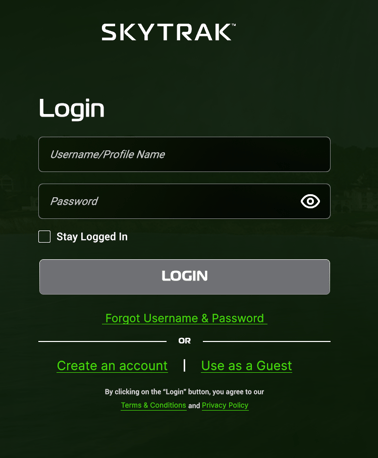
3. On the SkyTrak Application, log in to your Master Account
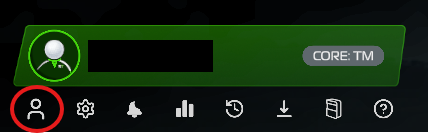
4. Click the portrait icon under the Player Hub on the top left of the home page.
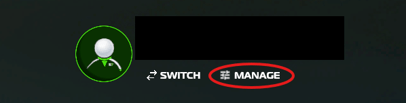
5. Click "Manage" at the top left, beneath your username
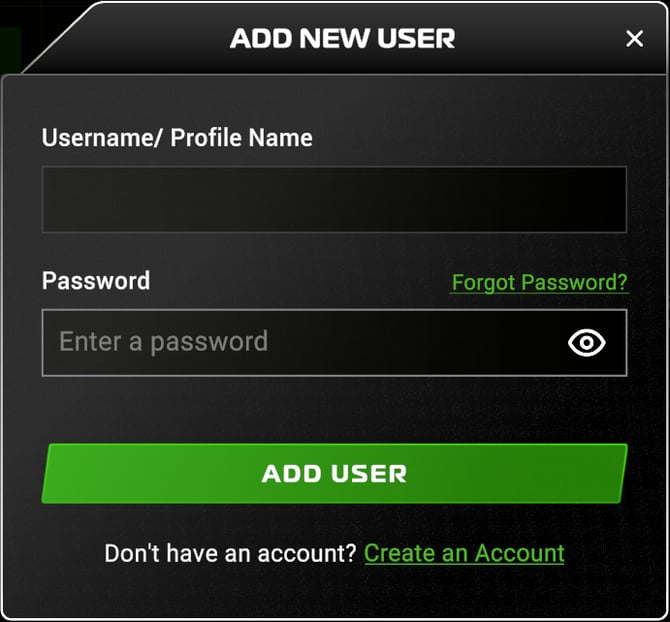
6. Click "Add New User" at the top right of the Manage Accounts panel.

7. Enter the credentials you made previously on the SkyTrak website.
If you are on an older version of the SkyTrak software, please review THIS ARTICLE