![SkyTrak_Logo-1000.png]](https://resources.skytrakgolf.com/hs-fs/hubfs/SkyTrak_Logo-1000.png?height=22&name=SkyTrak_Logo-1000.png)
1. Make sure your SkyTrak unit is registered to your account with your Core or Elite plan applied.
2. Connect your SkyTrak unit in any mode.
3. Close the SkyTrak application entirely.
4. Reconnect to your home WiFi network if applicable, then reopen the SkyTrak application.
This will sync your license files and allow you to download courses as long as your PC or iPad is connected to the internet. You do not need to be connected to your launch monitor to download courses. Course downloads will not work if you are currently connected in Direct Mode.
5. Press "Course Play" from the home page of the SkyTrak app.
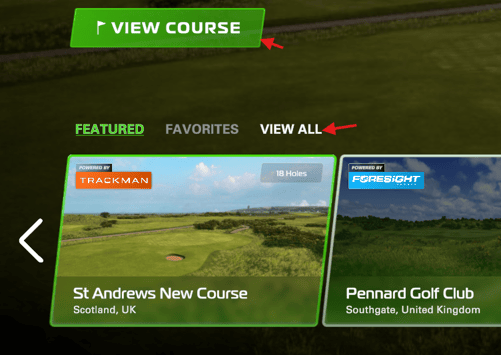
6.Click either "View Course" or "View All"
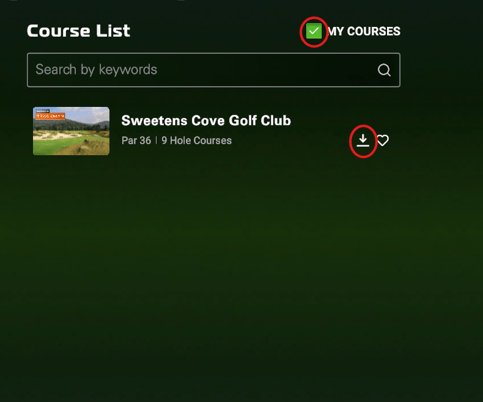
7. Click the "My Courses" checkbox at the top of the vertical list to omit any courses you are not provisioned for, then click the down arrow icons next to each course you want to download
Alternatively, you may get into either Network Mode or USB mode, then restart the app to download courses.